






















Meta Product Browsing in Sales Ads: What Changed on 28 October 2026 and How to Control It
Meta now shows an in-app product view before your website, on by default for existing ads. What it is, where to switch it, and why we keep it on for Sales campaigns.
- Published
- Reading time
- 6 min

28 Octon by default for existing ads
Product browsing is an in-app product view Meta can show after someone taps your ad, before your website opens. From 28 October 2026 Meta added it to existing ads by default. You control it per ad under Personalized destinations; for Sales campaigns we recommend keeping it on and testing it against your own purchase data.
- From 28 October 2026 product browsing is on by default for existing Facebook and Instagram ads.
- The switch is at the ad level, under Personalized destinations, next to Shop and Browser add-ons.
- Meta reports 3% more conversions on average in its own August 2026 test.
- Our view: keep it on for Sales campaigns, with clean tracking and a correct catalog, and judge it on purchases.
In this guide8
From 28 October 2026, Meta added a new step between your ad and your website. When someone taps an ad, they may first see a product page inside Facebook or Instagram, with product details and personalized suggestions, before they reach your store. Meta calls it product browsing, and it switched it on by default for existing ads unless the advertiser opted out.
This guide explains what product browsing is, what it changes for online stores, where to find the setting, how to turn it on or off, and how we handle it in the ecommerce Meta Ads accounts we run as a Meta Business Partner.
What Is Meta Product Browsing?
Product browsing is an in-app product view that Meta can show after a click. Instead of opening your website straight away, the person sees product information and suggestions inside Facebook or Instagram first, and moves on to your site from there. Meta's notice to advertisers says it "helps people learn more about your products quickly."
It belongs to a group of settings Meta now calls Personalized destinations: options that send people "to the experience most likely to result in a conversion after they click your ad." In the account we checked, the group has three options:
- Shop: sends people to your Facebook or Instagram shop instead of the website, when a shop is set up.
- Product browsing: shows the in-app product view described above before the website.
- Browser add-ons: Meta's extra features inside the in-app browser when your site opens there, for example a quick way for the person to contact you.
What Changed on 28 October 2026
Meta's advertiser notice was clear: "Starting October 28, 2026, we'll add product browsing to your existing ads." Advertisers could opt out from the notice before that date, and the setting can be changed at any time afterwards. In other words, the default flipped to on. If nobody on your team looked at the notice, your existing ads may now send part of their clicks to the in-app product view first.
Meta backs the change with its own test: in an experiment run in August 2026, it says businesses saw 3% more conversions on average with in-app product browsing. That is Meta's figure, without a breakdown by country or industry, so it is a reason to test, not proof that it works for your store.
- 28 Oct2026product browsing added to existing ads by default
- 3%more conversions on average, according to Meta's August 2026 test
- 3options under Personalized destinations: Shop, Product browsing, Browser add-ons
Where to Find the Setting
The setting lives at the ad level, not the campaign or ad set. Open the ad in Ads Manager and scroll to Personalized destinations. Under the description you see which options are on and which are off.
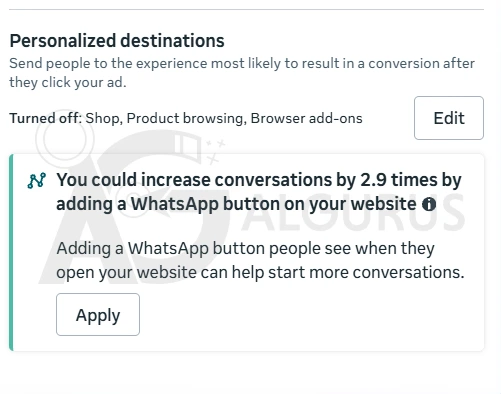
Notice the suggestion under it in the screenshot: Meta proposes adding a WhatsApp button to the website and promises more conversations. Expect these prompts next to the setting. Read them, but decide based on your own results.
How to Turn Product Browsing On or Off
- Open Ads Manager and go to the Ads tab of the campaign.
- Select the ad and click Edit.
- Scroll to Personalized destinations and click Edit next to it.
- Switch Product browsing on or off. Check Shop and Browser add-ons while you are there.
- Save, then Publish the ad.
- Repeat for each ad that needs the change: it is set per ad, so duplicate a correctly set ad when you build new ones.
Publishing an edit can send an ad back into review and, for larger changes, a short learning period. Make the change on all the ads of an ad set at once rather than one by one over several days.
Should You Keep It On? Our View
For Sales campaigns we keep product browsing on and watch it closely, instead of switching it off by reflex.
Our recommendation for Sales campaigns is to keep product browsing on, and to treat it as a test you control, not a setting you forget. We are still in the testing phase across the accounts we manage, but with close control the effect so far has not been negative. Here is how we run it:
- Know your starting pointNote purchases, conversion rate and cost per purchase for the two weeks before the change.
- Keep tracking cleanMake sure the Pixel and Conversions API both send purchases with values, so in-app sessions that buy on your site are still counted.
- Check the product dataProduct browsing shows your catalog details: titles, prices, images and stock must be correct in the catalog Meta uses.
- Compare like with likeLook at the same ad sets before and after, and at the ratio of link clicks to landing page views and purchases, not clicks alone.
- Decide per storeIf purchases or average order value drop clearly after a fair test period, switch it off for that store and keep the data for the next test.
When would we switch it off straight away? When the catalog is incomplete or out of date, when the store has a special checkout that must load first (for example, made-to-order products with options that the in-app view cannot show), or when a campaign's goal is not sales at all, such as sending people to a long landing page for leads.
What to Watch in Your Reports
Product browsing changes the path between the click and the purchase, so some numbers move even when sales do not. Read them together, not one by one:
- Link clicks versus landing page views. If more people stay in the in-app view, landing page views per click can drop. On its own that is not a problem; it only matters if purchases drop with it.
- Purchases and purchase value. These are the numbers that decide. Compare them per ad set over at least two full weeks, so one slow weekend does not mislead you.
- Average order value. Suggestions in the product view can push people towards other products. Watch whether baskets grow, shrink or simply change.
- Website analytics. In GA4 or your store's reports, sessions from Meta may fall slightly while orders stay steady. That pattern usually means the in-app step is doing the browsing your product pages used to do.
For stores in Jordan and the Gulf, check one more thing: the prices and currency the product view shows must match your store exactly, including any delivery fees mentioned in the title or description. A mismatch between the in-app view and the checkout is the fastest way to lose a buyer's trust.
How It Fits Meta's Other 2026 Changes
Product browsing is the same idea Meta applied to placements this year: let the system choose the experience most likely to convert, and give advertisers softer controls instead of fixed choices. Our guide to Meta ad placement changes in 2026 covers the other half, and our ultimate guide to Meta ads in 2026 puts both in context with AI shopping and messaging.
If you are not sure which of your ads have product browsing on, or whether it is helping, our paid ads audit checks these settings ad by ad, together with tracking and creative.
Mohammad Khalil Founder of AlGurus
13+ years in digital marketing, $28M+ in managed ad spend and 120+ brands across Jordan and the Gulf. He leads AlGurus, a Google Premier Partner (top 3% worldwide), Meta Business Partner and Shopify Partner, from Amman.
Frequently asked questions
What is product browsing in Meta ads?
It is an in-app view that shows product information and personalized suggestions inside Facebook or Instagram after someone taps your ad, before they continue to your website.
Is product browsing on by default?
Yes. Meta's notice said that starting 28 October 2026 it would add product browsing to existing ads, unless the advertiser opted out before that date. You can change it at any time afterwards.
Where do I turn product browsing off?
At the ad level in Ads Manager: open the ad, scroll to Personalized destinations, click Edit and switch Product browsing off, then publish. It is set per ad, so repeat it for each ad.
Does product browsing increase sales?
Meta says businesses saw 3% more conversions on average in its August 2026 test. That is Meta's own figure without a breakdown by country or industry, so test it on your store and judge it on purchases.
Should I keep product browsing on for Sales campaigns?
That is our recommendation, as a controlled test: keep tracking clean with the Pixel and Conversions API, make sure the catalog is correct, and compare purchases and order value before and after.
What are Shop and Browser add-ons in Personalized destinations?
Shop sends people to your Facebook or Instagram shop instead of the website when one is set up. Browser add-ons are Meta's extra features inside the in-app browser when your site opens there, for example a quick way to contact you.

